AI Chat
The assistant panel is docked to the right of the editor. Open it with the sparkle AI Assistant button on the editor toolbar, or by picking anything from the AI Tools menu.
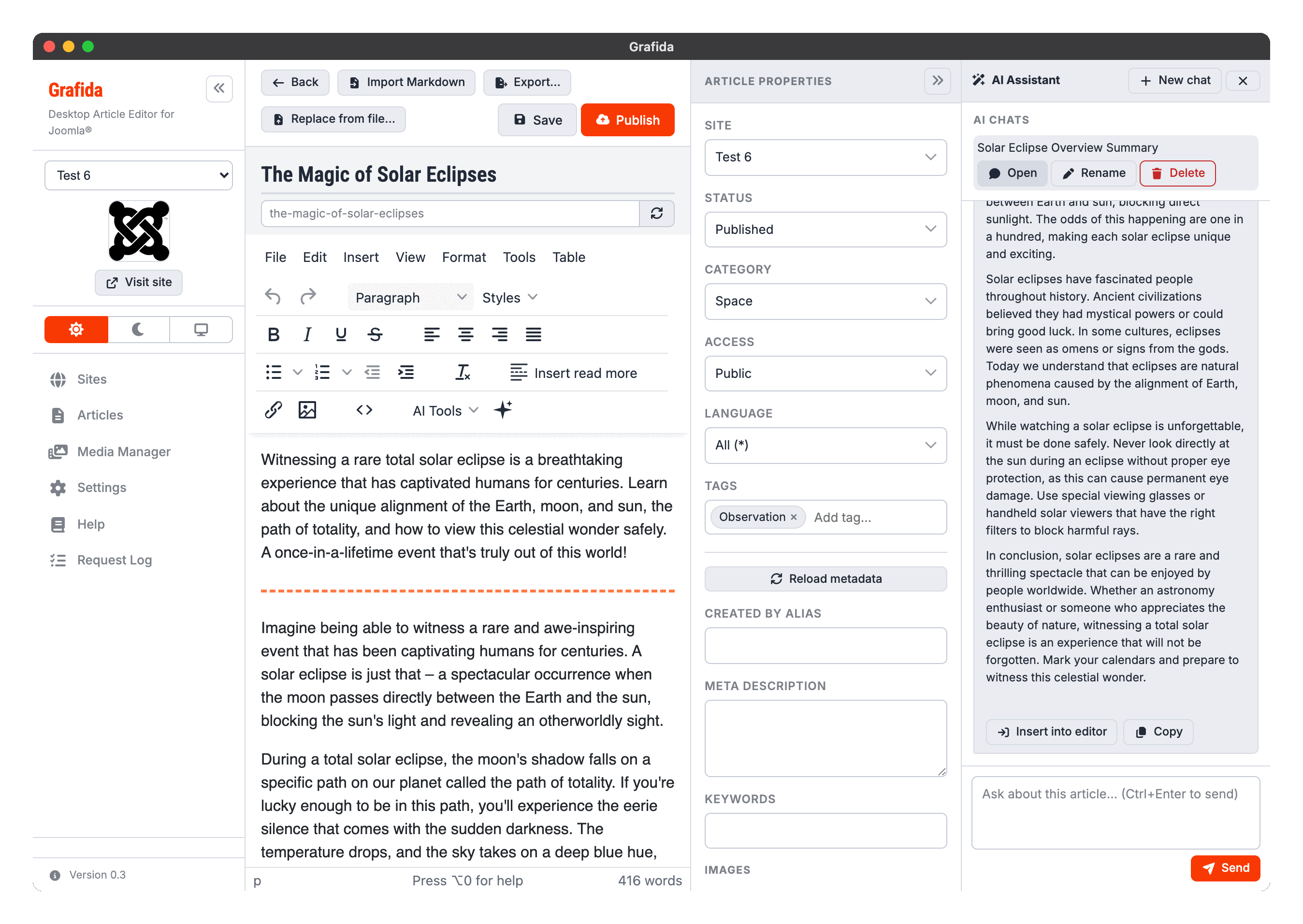
Drag the panel's left edge to make it wider or narrower; the width is remembered.
How a conversation works
The first message carries the article — its title and its HTML — as context, so the model knows what you are talking about. You do not have to paste anything or explain what the article is.
- Picking a tool sends that tool's instruction as the first message.
- Picking Custom…, or opening the panel with the sparkle button, leaves the chat empty for you to type your own.
Type in the box at the bottom and press Send, or Ctrl + Enter. Stop appears while a reply is arriving and abandons it.
Replies stream in word by word where the provider supports it. A tool's instruction is shown in a muted Instructions block rather than as something you said, so a long prompt does not dominate the conversation.
If you are using a model that reasons before answering, its scratchpad appears above the reply as a collapsible Thinking block — click to unfold it. It is shown so you can see something is happening; it is never inserted into the article, sent back to the provider, or saved with the chat.
Doing something with a reply
Each reply carries two buttons.
Insert into editor puts the reply into the article at the cursor. The reply is converted from
Markdown if necessary, and sanitised, so what lands in your article is clean HTML — no stray
**bold** markers, no scripts.
Copy copies the reply to the clipboard exactly as the model wrote it, Markdown and all.
Tip
Nothing reaches your article until you press Insert into editor, and even then it is just an ordinary edit: Ctrl/Cmd + Z undoes it.
The panel header
New chat starts a fresh conversation. If the current one is worth keeping, you are offered the chance to remember it first.
Close (the ×) hides the panel, with the same offer.
Remembering a chat
When you close a non-empty conversation, Grafida asks whether to remember it. If you say yes:
- the local article is saved first, if it was not already;
- a title is generated for the chat if you have not given one;
- the whole conversation is stored alongside the article.
Remembered chats appear in the AI Chats banner at the top of the panel, where you can Open one to continue it, Rename it, or Delete it.
Saved chats travel with the article: they are included in a .grafida
export, and they are deleted when the local
article is deleted.
Full-screen editing
Opening the panel leaves TinyMCE's full-screen mode first — the panel is part of the application's layout, and a full-screen editor would paint straight over it.
When something goes wrong
The buttons are not there. No AI service is configured, or you configured one while the editor was already open. Add a service in Settings, then go back to the article list and open the article again.
The reply arrives all at once and the interface stops responding while it does. You are using a local model server without CORS enabled, so Grafida has fallen back to a route that cannot stream. See AI Services.
The provider rejects the request as soon as it is sent. If you switched on The model can see images for a text-only model, switch it back off — such a model rejects the whole request rather than ignoring the pictures.
The reply is about the wrong article. Press New chat. The article is attached to the first message of a conversation, so a chat you carried over from another article still has that one's text in it.